Arabic
  English
  Turkish
  Chinese
  Japanese
  Russian
  Spanish
  German
  French
  Hindi
Hindi Download AKK NetMon 1.7 for Windows
Download AKK NetMon 1.7 for Windows.
AKK NetMon Overview
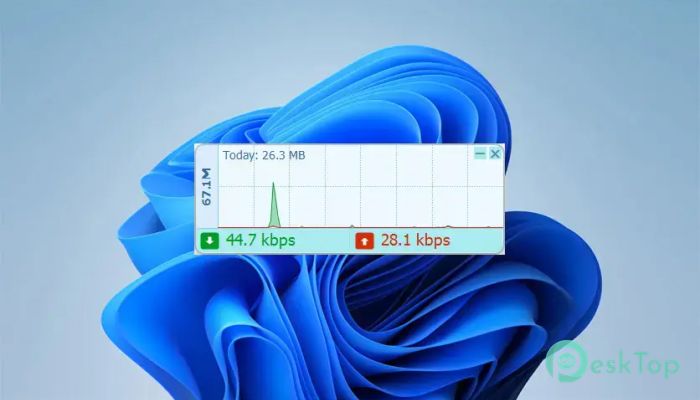
It is made for users who want to keep an eye on internet activity without opening a heavy monitoring program. It works like a small speedometer on your Windows desktop, showing real-time network activity in a simple, clear way. The software is inspired by classic tools like DU Meter, but it maintains a modern, compact, and easy-to-use design. It focuses on what most users need every day: upload speed, download speed, data usage, and monthly tracking. Built with C and WinForms on .NET 8, the tool is designed to run smoothly while using fewer system resources. This makes it useful for office users, gamers, streamers, remote workers, and anyone who wants quick network updates at a glance.Features of AKK NetMon
Clean and Minimal Interface
The interface is one of its biggest strengths. It stays on your desktop as a small dashboard, showing you important network details without covering your work. You do not need to open a large window or dig through settings just to check your speed.
Its design is simple, but not boring. The widget gives a modern feel with colored indicators, smooth graphs, and adjustable appearance options. It feels like a small speedometer for your internet connection.
Live Upload and Download Speed Graph
The software includes a live scrolling speed graph that shows your connection activity in real time. The green channel shows download speed, while the red channel shows upload speed.
This visual graph is helpful when downloading files, uploading videos, streaming content, or checking if any apps are using the internet in the background. Instead of guessing, you can see the movement clearly.
DU Meter Style Speed Badges
It also includes colorful badge arrows with download and upload indicators. These badges show live BPS readings, making it easier to understand how much data is moving at that moment.
The arrows are simple but useful. A downward arrow shows incoming data, while an upward arrow shows outgoing data. This small detail makes the widget quick to read even when you are busy.
Compact and Pill Mode
Screen space matters, especially when you have many windows open. The tool solves this with a compact pill mode. You can collapse the widget into a small speed-only strip that stays out of your way.
This mode is perfect for laptops, smaller monitors, or users who like a clean desktop. It gives you the needed speed details without taking over the screen.
Daily and Monthly Usage Stats
The software can show a Today and Month breakdown panel with a simple double-click. This helps you check how much data has been used today or this month.
For users with limited internet plans, this feature is very useful. It simplifies data tracking and helps avoid unwelcome surprises near the end of the billing cycle.
Monthly Data Cap Tracking
You can set a monthly GB limit and let the tool track usage against that cap. The progress bar changes color from green to amber and then red as usage increases.
This works like a fuel gauge for your internet plan. Green means you are safe, amber means you should pay attention, and red means you are close to the limit.
Start with Windows Option
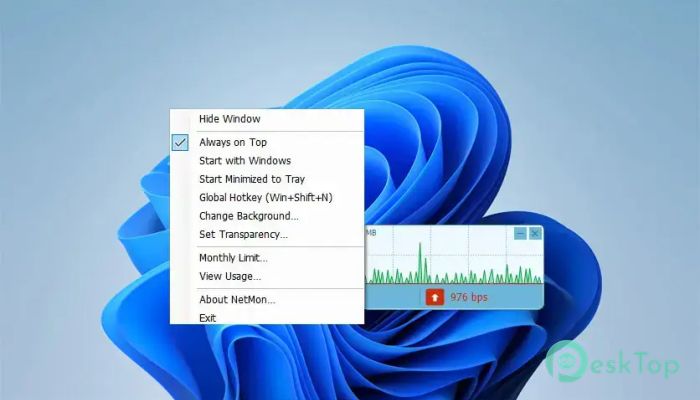
The software includes an optional Start with Windows feature. When enabled, it can launch automatically using the HKCU Run key, so you do not need to open it manually every time.
This is useful for users who always want network monitoring to be active. You can also toggle this option from the system tray menu whenever needed.
Transparency and Background Color Control
The tool gives you control over transparency from 20 percent to 100 percent. You can make it fully visible or slightly faded, depending on your desktop style.
It also lets you choose any background color. The border and separators adjust automatically, so the widget still looks clean after customization.
System Tray Controls
The system tray menu makes the software easy to manage. You can right-click the tray icon to access the full menu or double-click it to show or hide the widget.
This makes daily use smooth and quick. You do not need to search through folders or taskbar buttons just to change a setting.
Window Memory Feature
The software remembers its position and size after you close it. When you open it again, it appears exactly where you left it.
This small feature saves time and keeps your desktop layout consistent. It is especially helpful for users who prefer their tools to be arranged in a fixed place.
Why It Is Useful
The tool is useful because it provides real-time internet information without complicating things. Many network monitoring suites are packed with advanced options, but most users only need clear speed and usage details.
It keeps the process simple. You can watch current speeds, track data usage, set a monthly limit, customize the look, and keep the widget running quietly in the background.
System Requirements and Technical Details
Operating System: Windows 11 / 10 / 8.1 / 7
Processor: Minimum 1 GHz Processor (2.4 GHz recommended)
RAM: 2GB (4GB or more recommended)
Free Hard Disk Space: 200MB or more is recommended

-
Program size45.58 MB
-
Version1.7
-
Program languagemultilanguage
-
Last updatedBefore 3 Month
-
Downloads7
 RealVNC VNC Server Enterprise
 CrushFTP
 Reqable
 AnyDesk
 AmneziaVPN
 CurrPorts