Arabic
  English
  Turkish
  Chinese
  Japanese
  Russian
  Spanish
  German
  French
  Hindi
Hindi Download CapyCursor 1.0.2 for Windows
Download CapyCursor 1.0.2 for Windows.
CapyCursor Overview
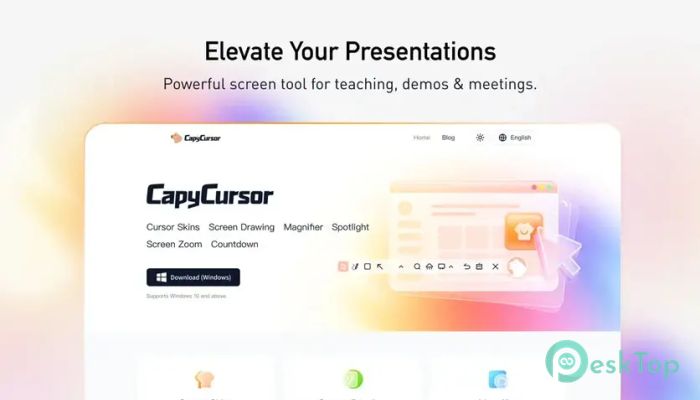
When you're presenting, teaching, or demonstrating something on your screen, clarity matters. Sometimes the mouse pointer becomes difficult to follow, especially during live sessions or recorded tutorials. That is where this software becomes extremely helpful. It enhances cursor visibility and lets you draw, highlight, and magnify areas in real time. The software is designed to be lightweight yet powerful. It does not slow down your system or consume unnecessary resources. Whether you are an educator explaining a concept, a YouTube creator recording tutorials, or a business professional giving a product demo, this tool helps make your message clearer and easier to follow. It also provides visual effects that make your cursor stand out. These features help viewers focus on important areas of the screen. Instead of explaining verbally, you can visually guide your audience, making communication faster and more effective.Features of CapyCursor
Lightweight and Fast Performance
One of the biggest advantages of this software is its lightweight design. It runs smoothly even on older computers without affecting performance. You can run presentations, screen recordings, and other applications simultaneously without lag.
The compact size also means quick installation. You do not need complicated setup steps. Simply install, launch, and start using it immediately. This simplicity makes it ideal for both beginners and professionals.
Cursor Customization Features
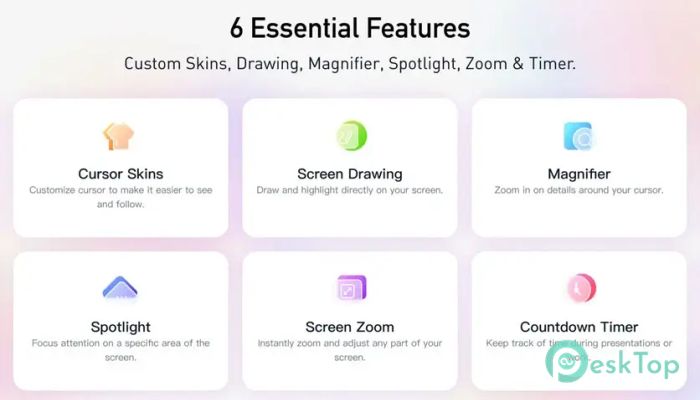
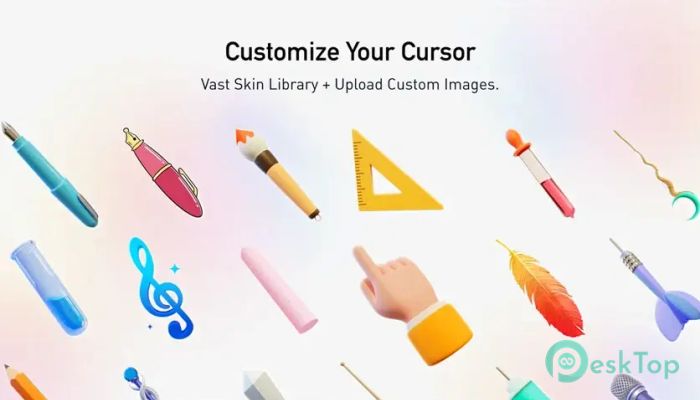
Sometimes, the default cursor is too small or hard to track. This tool lets you customize the cursor's size, color, and effects. You can choose styles that match your presentation theme or personal preference.
These customization options help make your cursor visible from a distance. For example, during webinars or classroom presentations, participants can easily follow your movements. It works like a laser pointer, but in a more flexible, digital way.
Real-Time Screen Highlighting
Highlighting areas on the screen becomes simple with built-in tools. You can draw circles, underline text, or mark specific elements as you explain. This feature helps guide viewers directly to important information.
Instead of saying "look at the top right corner," you can visually highlight it. This saves time and improves understanding. It also makes your presentation look more professional and engaging.
Screen Annotation Tools
The annotation tools allow you to draw directly on your screen. These include pen, shapes, and highlighting features. You can explain concepts visually, just like using a whiteboard.
This is especially useful for teachers and trainers. Complex ideas become easier to understand when visual examples are provided. It transforms your screen into an interactive teaching space.
Magnifier and Spotlight Features
Sometimes small details need extra attention. The magnifier feature allows you to zoom into specific areas. This helps viewers clearly see menus, buttons, or small text.
The spotlight feature dims the rest of the screen while focusing on a selected area. It acts like a stage light, directing audience attention exactly where needed. This creates a professional and polished presentation experience.
Perfect for Presentations and Tutorials
This tool is ideal for live presentations, online teaching, and recorded tutorials. It improves communication by adding visual clarity. Whether you are explaining software features or presenting slides, it helps deliver your message effectively.
YouTube creators also benefit from these features. Tutorials become easier to follow, and viewers stay engaged. The result is better content and improved audience retention.
Useful for Business and Product Demos
Corporate presenters often need to demonstrate products or services. With cursor highlighting and annotation tools, you can clearly show features. This helps clients understand functionality quickly.
It also improves professionalism during meetings. Instead of struggling to explain details, you can visually demonstrate them. This creates a smoother and more confident presentation.
Easy-to-Use Interface
The interface is designed to be simple and user-friendly. You do not need technical skills to use it. All tools are accessible and easy to understand.
Even first-time users can quickly learn the features. The clean layout ensures that you focus on your presentation rather than navigating complicated menus.
Minimal System Resource Usage
Performance matters, especially during live sessions. This software uses minimal system resources. It runs quietly in the background without slowing down your computer.
This ensures smooth screen recording, video conferencing, and presentations. You can rely on consistent, uninterrupted performance.
Ideal for Multiple Use Cases
This tool fits many scenarios. Teachers can explain lessons visually. Content creators can enhance tutorials. Business professionals can improve product demonstrations.
It also works well for live streaming. Streamers can easily highlight content and guide viewers. The flexibility makes it useful across various industries.
System Requirements and Technical Details
Operating System: Windows 11 / 10
Processor: Minimum 1 GHz Processor (2.4 GHz recommended)
RAM: 2GB (4GB or more recommended)
Free Hard Disk Space: 200MB or more is recommended

-
Program size12.38 MB
-
Version1.0.2
-
Program languagemultilanguage
-
Last updatedBefore 5 Month
-
Downloads63
 Reuschtools ClassicMenu
 AI Aquarium Screensaver
  Rainmeter
 Rainlendar Pro
 N-Button Pro
 Stardock DeskScapes