Arabic
  English
  Turkish
  Chinese
  Japanese
  Russian
  Spanish
  German
  French
  Hindi
Hindi Download BullZip Express Menu 4.0.6405.28375 for Windows
Download BullZip Express Menu 4.0.6405.28375 for Windows.
BullZip Express Menu Overview
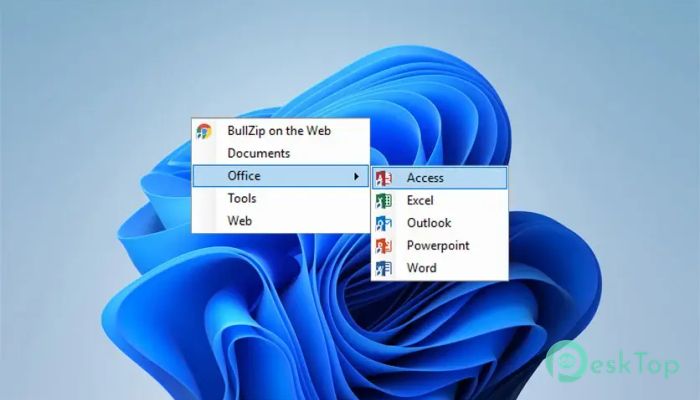
As you install more programs on your computer, the Windows Start Menu can quickly become cluttered. It gets longer, heavier, and sometimes slower to open. That is where this smart little add-on comes in. It works like a second, cleaner menu that stays out of your way until you need it. The software lets you create a quick pop-up menu with the shortcuts you choose. Instead of scrolling through a long list of apps, you press a simple hotkey and your personal menu appears in seconds. It feels like having a private control panel designed just for you. It is built to be simple, lightweight, and easy to use. There are no complicated settings or confusing panels. Once installed, it quietly runs in the background and waits for your command.Features of BullZip Express Menu
Quick Access with a Simple Hotkey
Speed is the biggest advantage here. Once installed, you can activate the pop-up menu by pressing Ctrl + Alt + Z. Instantly, the menu appears in the top left corner of your screen.
This feels almost like summoning a secret panel. No mouse hunting. No searching through folders. Just press the keys, and your selected shortcuts are ready.
If you love keyboard shortcuts, this feature alone makes the experience smooth and satisfying. It turns everyday tasks into quick actions.
Easy Navigation for Faster Workflow
Using the pop-up menu is simple and natural. You can move through the entries with your arrow keys. If you are in a hurry, press the first letter of the item you want to jump to.
This keyboard-based navigation makes everything feel faster. It is like flipping directly to the page you need in a book instead of reading the table of contents every time.
The software is ideal for users who prefer to work without constantly switching between keyboard and mouse.
System Tray Integration
While running, the tool remains quietly in the system tray in the lower-left corner of your desktop. It does not disturb you or take up valuable screen space.
If you right-click the small tray icon, a simple menu appears. From there, you can easily manage everything without digging into complex settings.
This makes management quick and stress-free. It is always there when you need it, yet never in the way.
Tray Menu Options Explained
The tray menu gives you a few useful options:
Show: Displays the pop-up menu. This works the same as pressing the Ctrl + Alt + Z shortcut.
About: Opens a small information box about the program.
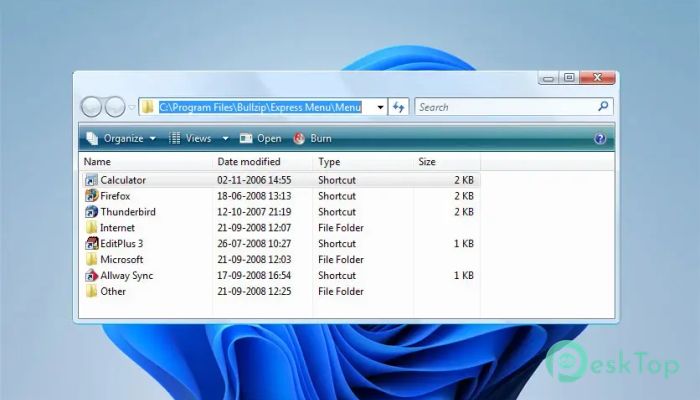
Edit: Opens the folder where your menu shortcuts are stored, allowing you to easily add or remove entries.
Exit: Closes the program completely.
These options are straightforward and easy to understand. No extra clutter. No confusing layers of menus.
Simple Customization
Customization is one of the add-on's strongest features. When you choose the Edit option, it opens the folder where your shortcuts are defined. From there, you can add new shortcuts, remove old ones, or organize them as you like.
This works just like managing files in a normal folder. If you create a desktop shortcut, you can customize this pop-up menu.
That simplicity makes it accessible even for beginners. You do not need technical knowledge to set it up the way you want.
Lightweight and Efficient
One of the best things about this tool is its light weight. It does not slow down your system or use heavy resources. It runs quietly in the background without interfering with your work.
If your Start Menu feels bloated and sluggish, this software acts like a small, fast side door. Instead of walking through the crowded main entrance, you slip through a clean shortcut path.
For older systems or users who prefer minimal programs, this efficiency is a big plus.
Perfect for Power Users and Beginners
This add-on works well for all types of users. Beginners will appreciate the simple setup and easy navigation. Power users will love the keyboard shortcut and faster workflow.
If you enjoy organizing your workspace and keeping things neat, this tool helps you maintain control. It turns daily computer tasks into smoother, faster actions.
It is especially helpful if you install many programs regularly. Instead of letting your Start Menu grow endlessly, you can keep your personal pop-up menu tidy and focused.
System Requirements and Technical Details
Operating System: Windows 11 / 10 / 8.1 / 7
Processor: Minimum 1 GHz Processor (2.4 GHz recommended)
RAM: 2GB (4GB or more recommended)
Free Hard Disk Space: 200MB or more is recommended

-
Program size513.18 KB
-
Version4.0.6405.28375
-
Program languagemultilanguage
-
Last updatedBefore 8 Month
-
Downloads16Ralated programs
![Operant Peak Spectroscopy]() Operant Peak Spectroscopy
Operant Peak Spectroscopy ![NeverWrite]() NeverWrite
NeverWrite![FluentCleaner]() FluentCleaner
FluentCleaner![Snippai]() Snippai
Snippai![ChillShot AI]() ChillShot AI
ChillShot AI![Splunk Enterprise]() Splunk Enterprise
Splunk Enterprise
 Operant Peak Spectroscopy
  NeverWrite
 FluentCleaner
 Snippai
 ChillShot AI
 Splunk Enterprise