Arabic
  English
  Turkish
  Chinese
  Japanese
  Russian
  Spanish
  German
  French
  Hindi
Hindi Download OpenURLs Lite 1.0 for Windows
Download OpenURLs Lite 1.0 for Windows.
OpenURLs Lite Overview
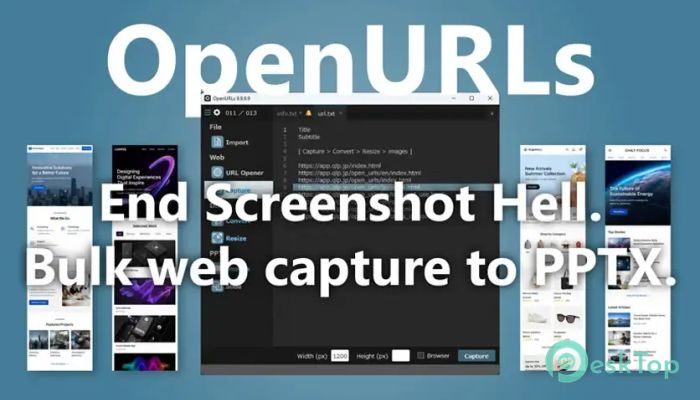
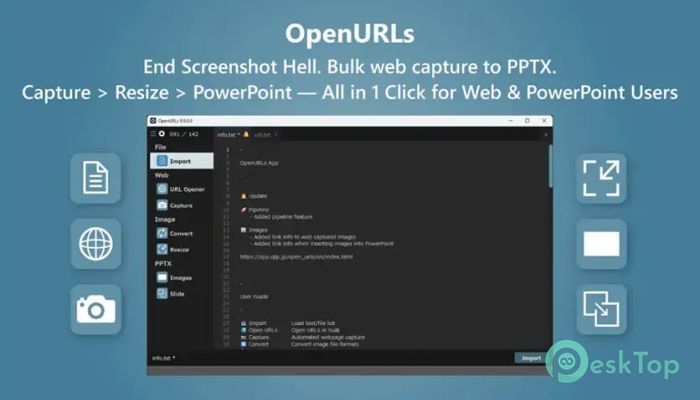
It simplifies repetitive testing and reporting tasks that can take up much of a tester's day. Instead of opening web pages one by one, taking screenshots manually, saving each image, and pasting everything into presentation slides, the software combines these steps into one practical workflow. The tool is especially useful for QA engineers, website testers, developers, and other professionals who regularly review many web pages. It can import URL lists, launch multiple pages, capture screenshots, process images, and arrange them inside PowerPoint files. This automation turns a long chain of small jobs into a much faster process.Features of OpenURLs Lite
Import URLs from Different Files
The software makes it easy to begin with an existing list of web addresses. Users can import information from TXT, CSV, and XLSX files instead of manually copying every address into the application. This is helpful when testing projects already use spreadsheets to organize pages, test cases, or website links.
For example, a tester may have dozens of product pages listed in an Excel sheet. Instead of opening each address separately, you can import the list and process it all at once. It works like handing the tool a checklist and letting it handle the repetitive clicking.
Open Multiple URLs Automatically
Opening many browser tabs manually is slow and can put unnecessary pressure on the browser. The built-in URL opener handles this task automatically by launching multiple web addresses.
The tool can automatically adjust the interval between opened tabs to help reduce browser load. This small feature helps with long URL lists because pages don't open at exactly the same moment. Testers can review many pages while spending less time copying, pasting, and switching between applications.
Automated Web Page Screenshots
Screenshot capture is one of its most useful features for QA work. The software can automatically capture and save screenshots from multiple web pages. Users can specify the capture size according to the type of evidence or documentation they need.
Full-page capture is also supported. Instead of taking several screenshots while scrolling through a long page, the tool can capture the complete page in one image. This is useful for visual testing, bug reports, website reviews, design comparisons, and project records.
Batch Image Format Conversion
Test reports often include images from different sources, and their formats may not match the required output. The software includes batch image conversion to simplify this process. It supports commonly used JPG and PNG formats.
Users can process multiple files together instead of opening an image editor for every screenshot. For example, you can convert a collection of PNG screenshots to JPG when a particular workflow requires it. Batch processing saves clicks and keeps larger testing projects easier to manage.
Resize Multiple Images Quickly
Images may also need consistent dimensions before adding them to reports or presentations. The built-in resizing feature can process multiple pictures by width or height.
This is particularly helpful when screenshots come from pages with different dimensions. Rather than adjusting every picture manually, users can apply a common sizing rule to a group of files. The result is cleaner, more consistent visual documentation with much less repetitive editing.
Automatic PowerPoint Image Arrangement
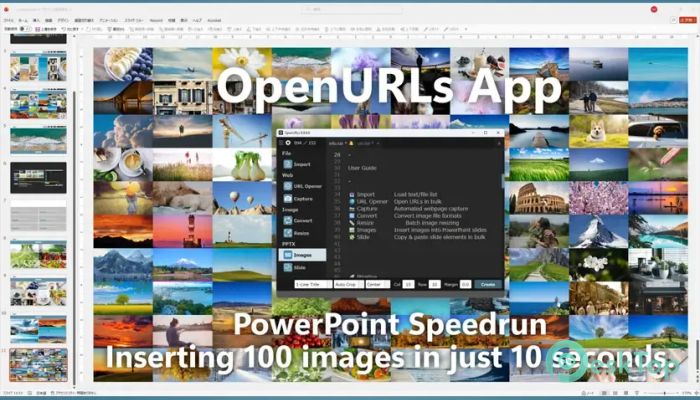
Preparing PowerPoint reports can get tiring when you need to insert and position dozens of screenshots. The software automates much of this work by placing multiple images into PPTX slides and arranging them according to specified rows and columns.
It can also apply suitable trimming while arranging images. This helps create organized slides without requiring the user to repeatedly insert, resize, crop, and reposition every screenshot. For QA teams that prepare visual reports frequently, this feature can remove a major manual step from the workflow.
Reuse Existing Slide Structures
Many companies use standard presentation templates for testing reports, website reviews, and client documentation. Creating the same slide structure again for every project wastes valuable time.
The slide feature lets you copy existing slides in batches to other slides. This makes it easier to reuse established template structures while preparing new reports. Teams can keep a familiar presentation layout and focus more attention on the actual testing results instead of rebuilding slide designs.
Useful Workflow for QA Engineers
The tool's biggest advantage is how its features connect. A tester can start with a spreadsheet containing web addresses, import the list, open the required pages, capture screenshots, resize or convert the resulting images, and then arrange those images inside presentation slides.
Without automation, this process can involve hundreds of small actions on a large project. Combining these operations into one workflow reduces repetitive work and lowers the chance of accidentally skipping a page or image during report preparation.
Simple Productivity Tool for Software Testing
The application is not limited to one type of website project. It can fit into different testing routines where multiple URLs and screenshots need to be handled regularly. Examples include web page verification, interface reviews, visual comparisons, regression testing records, and presentation preparation.
Its focused approach also keeps the workflow easy to understand. Instead of acting as a complete testing suite filled with unrelated functions, it concentrates on automating common browser, screenshot, image, and presentation tasks.
Local and Secure Processing
Privacy can matter when testing internal websites, development environments, or projects containing confidential information. The software processes locally on the Windows PC, so users can handle their workflow directly on their own computer.
This local approach is particularly useful for teams that prefer to keep screenshots and project materials on their machines. It combines automation with a straightforward desktop workflow without moving routine processing to an external online service.
System Requirements and Technical Details
Operating System: Windows 11 / 10 / 8.1 / 7
Processor: Minimum 1 GHz Processor (2.4 GHz recommended)
RAM: 2GB (4GB or more recommended)
Free Hard Disk Space: 200MB or more is recommended

-
Program size451.89 KB
-
Version1.0
-
Program languagemultilanguage
-
Last updatedBefore 1 Month
-
Downloads5
 Cyotek WebCopy
 Linphone
 Cinny
Cinny AllMapSoft Bing Maps Downloader
  AllMapSoft Yandex Maps Downloader
  AllMapSoft google earth images downloader