Arabic
  English
  Turkish
  Chinese
  Japanese
  Russian
  Spanish
  German
  French
  Hindi
Hindi Download Text Grab 4.15.0 for Windows
Download Text Grab 4.15.0 for Windows.
Text Grab Overview
This simple yet powerful utility is designed for people who often need to copy text from places where normal copying is impossible. Think about text inside images, videos, PDFs, or even locked applications. Normally, extracting that text would require complicated tools or manual typing. However, this software solves the problem in seconds. It uses the Optical Character Recognition technology already built into Windows. That means the software stays light, fast, and efficient without requiring an internet connection. Everything happens locally on your computer, making the process quick and secure. The beauty of this tool lies in its simplicity. It starts quickly, performs its job in seconds, and then quietly steps aside so you can continue your work. If productivity tools were kitchen utensils, this one would be the sharp knife you reach for every day.Features of Text Grab
Simple and Fast OCR Technology
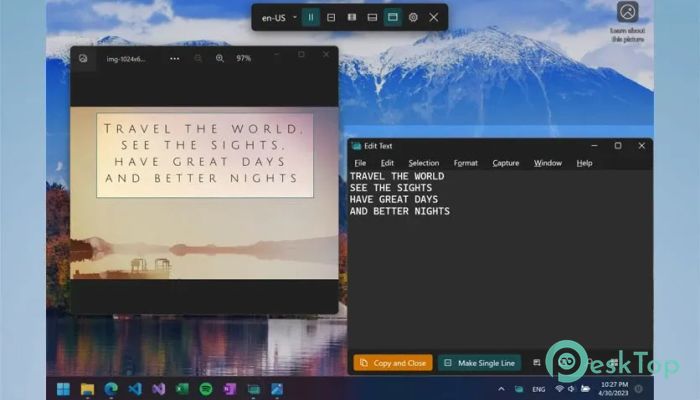
Optical Character Recognition is the heart of the tool. This technology scans visible text on your screen and converts it into editable digital text. Instead of typing everything manually, you simply select the area and let the software do the work.
Because it uses the OCR engine already installed in Windows, the performance is extremely smooth. There is no need for heavy background services or complicated setup. Once installed, it works instantly.
It feels almost like magic. You highlight a section of the screen, and within seconds, the words appear in your clipboard, ready to paste anywhere. Whether you're collecting notes, copying instructions, or grabbing information from a screenshot, the process feels natural and effortless.
Works with Many Types of Content
One of the most helpful aspects is its ability to recognize text from many different sources. Modern computer users interact with information in many forms, and the software adapts to that environment easily.
You can grab text from pictures, scanned documents, application interfaces, videos, websites, and PDF files. Even if text appears inside a paused video or a screenshot, it can still be captured and converted into usable text.
This flexibility makes the tool useful for students, professionals, developers, researchers, and everyday users. Imagine watching a tutorial video and instantly copying commands from the screen, rather than pausing to type them manually. It saves time and reduces mistakes.
Fullscreen Capture Mode
The first capture mode focuses on simplicity and speed. In this mode, you simply select a region of the screen. The software then scans that selected area and extracts any text it finds.
You can drag a rectangular box around the text you want, or sometimes even click directly on a word. Within a moment, the recognized text is copied directly to the Windows clipboard. From there, you can paste it into documents, chat messages, spreadsheets, or any other application.
This mode is perfect for quick tasks. It works like taking a screenshot, except instead of saving an image, it gives you the actual text inside it.
Grab Frame Mode
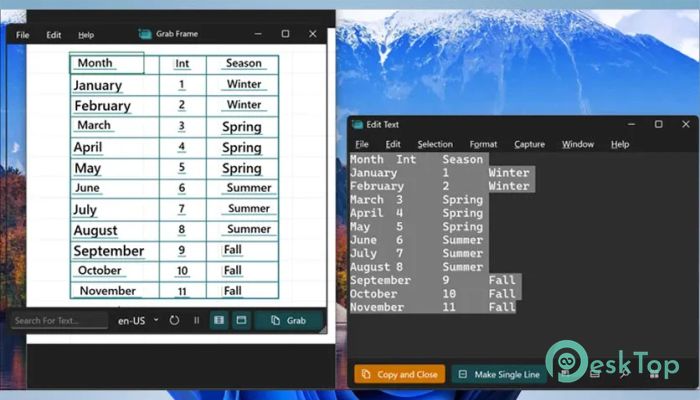
The second mode offers a clever floating capture window called Grab Frame. Think of it as a small magnifying glass that sits on top of your screen.
You can move this floating window over any area of the screen. The software constantly scans whatever appears within that frame and attempts to automatically recognize the text. This allows you to capture text from moving or changing content without repeating the capture process.
For example, if you're reading a document, browsing a website, or watching a presentation, you can simply move the frame over the text and copy it instantly. It feels like having a portable scanner that follows your mouse around the screen.
Edit Text Window Mode
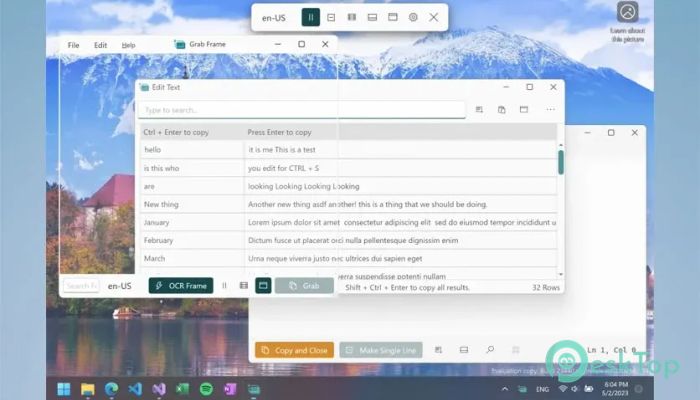
The third mode turns the tool into something like an enhanced notepad. This mode opens a text editing window where captured content can be collected and edited.
Instead of immediately copying text to the clipboard, the recognized text appears in a plain-text editor. Here you can review it, edit mistakes, organize notes, and combine multiple captures together.
This mode is perfect when you're gathering information from different sources. Imagine collecting text from several screenshots, images, and documents into one place. It becomes a powerful workspace for organizing information before saving or sharing it.
Offline and Lightweight Performance
Many modern OCR tools depend heavily on cloud services. While cloud processing can be powerful, it also requires internet access and often sends your data to remote servers.
This software takes a different approach. Everything works locally on your computer. No internet connection is required, and no external services are needed. This not only speeds up the process but also keeps your data private.
Another advantage is its minimal resource usage. The application launches quickly, performs the task, and exits without slowing down your system. It does not run constantly in the background or consume unnecessary memory.
Because of its speed and simplicity, many users find themselves using it dozens or even hundreds of times a day.
Multi-Language Recognition
Another useful feature is language support. Since it relies on Windows language packs, the software can recognize text in many different languages.
If your system already has multiple languages installed, the OCR engine can read those languages automatically. This makes it very useful for international users who frequently work with multilingual documents.
Whether you're copying text from foreign websites, translated documents, or multilingual screenshots, the recognition system adapts easily.
Improves Everyday Productivity
Small tools often create the biggest productivity improvements. Instead of spending minutes retyping text, you can grab it instantly and move on to the next task.
This simple workflow saves time in research, programming, office work, and studying. When information appears on the screen, you can capture it immediately and use it wherever needed.
Think of it as a digital pair of scissors for text. Wherever words appear, you can cut them out and place them into your work.
System Requirements and Technical Details
Operating System: Windows 11 / 10 / 8.1 / 7
Processor: Minimum 1 GHz Processor (2.4 GHz recommended)
RAM: 2GB (4GB or more recommended)
Free Hard Disk Space: 200MB or more is recommended

-
Program size23.92 MB
-
Version4.15.0
-
Program languagemultilanguage
-
Last updatedBefore 2 Month
-
Downloads41Ralated programs
![Operant Peak Spectroscopy]() Operant Peak Spectroscopy
Operant Peak Spectroscopy ![NeverWrite]() NeverWrite
NeverWrite![FluentCleaner]() FluentCleaner
FluentCleaner![Snippai]() Snippai
Snippai![ChillShot AI]() ChillShot AI
ChillShot AI![Splunk Enterprise]() Splunk Enterprise
Splunk Enterprise
 Operant Peak Spectroscopy
  NeverWrite
 FluentCleaner
 Snippai
 ChillShot AI
 Splunk Enterprise