Arabic
  English
  Turkish
  Chinese
  Japanese
  Russian
  Spanish
  German
  French
  Hindi
Hindi Download TruHu 1.0 for Windows

Download TruHu 1.0 for Windows.
TruHu Overview
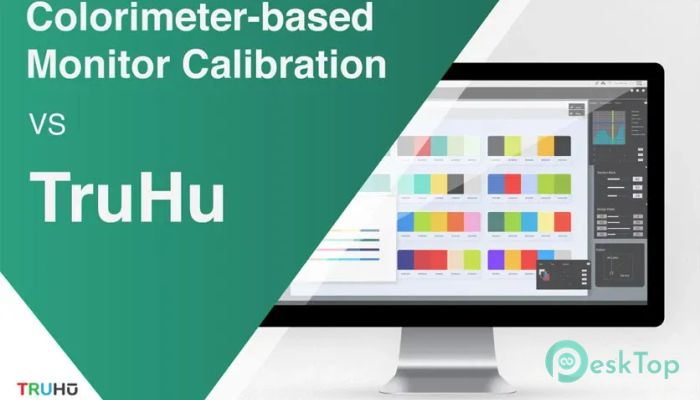
Getting the right colors on your screen can feel like trying to tune a guitar by ear without any experience. This is where the tool steps in and makes everything simple. It is designed to help users calibrate their monitors without needing expensive tools or technical knowledge. Instead of relying on complex hardware, it uses your smartphone camera along with a desktop app to deliver professional-level color accuracy. The tool guides you step by step. You do not have to guess anything. It ensures your display shows colors as they are meant to be seen, which is especially useful for designers, photographers, video editors, or even everyday users who want better visuals. The process is quick, smooth, and surprisingly accurate. How It Works The software connects your desktop and mobile devices so they can work together like a team. Think of it like having a digital assistant that checks your screen and tells you exactly how to fix it. The desktop app displays calibration targets, while the mobile app captures images using your phone camera. These images are analyzed to adjust your screen settings. The process feels natural and guided, so even beginners can handle it without stress. It removes the guesswork and replaces it with clear steps.Features of TruHu
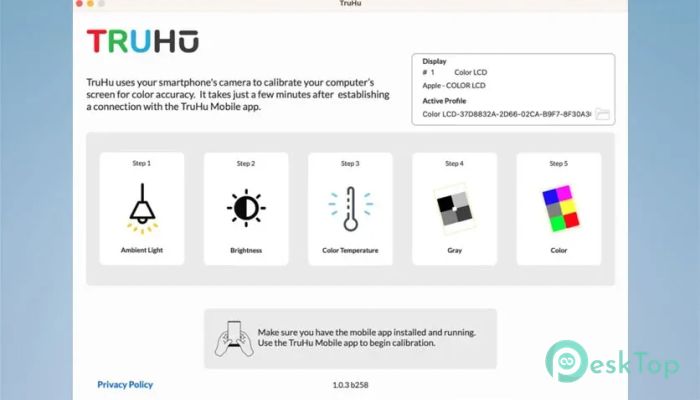
Adjusting Ambient Lighting
Before starting the calibration, it is important to properly set up your environment. Lighting plays a huge role in how colors appear on your screen. The tool guides you to make sure no harsh light is falling directly on your monitor.
The idea is to match your usual working environment. If you normally work in a softly lit room, your calibration should be done under the same conditions. This ensures the results remain consistent in your daily use.
Setting the Right Brightness
Brightness is like the volume of your display. Too high, and everything looks washed out. Too low, and details disappear. The software helps you adjust your monitor brightness to match your surroundings.
This step ensures that your screen is neither too harsh nor too dull. It finds a balance that feels comfortable to your eyes while maintaining color accuracy. It is a small adjustment that makes a big difference.
Choosing Color Temperature
Color temperature affects how warm or cool your display looks. Some people prefer warmer tones, while others like cooler shades. The mobile app allows you to choose from multiple color temperature settings.
This flexibility is useful because not every user has the same preference or work requirement. For example, photo editing might require different settings than casual browsing. The tool gives you control while still guiding you toward accurate results.
Capturing Gray Target
This step is where things start to get interesting. The desktop app shows a gray target on your screen, and you use your phone camera to capture it. The app helps you align a yellow rectangle with a green square for perfect positioning.
Once aligned, you take a photo. This helps the tool understand how your monitor displays neutral tones. It is like checking the foundation before painting a wall. If the base is correct, everything else will fall into place.
Capturing Color Target
After the gray capture, the process moves to color capture. The desktop displays a color target, and you use your smartphone to take a photo again. Alignment is key here as well.
This step allows the tool to analyze how your monitor handles different colors. It compares the captured data with ideal values and then adjusts your display accordingly. The result is a screen that shows colors more accurately and naturally.
Why It Stands Out
What makes this tool unique is its simplicity. Traditional calibration methods often require expensive hardware devices. Here, your smartphone becomes the main tool, making the process accessible to everyone.
It is also fast. You do not need to spend hours tweaking settings. Within minutes, you can achieve results that feel professional. It is like turning a regular TV into a high-end display without spending extra money.
Benefits for Different Users
For designers and photographers, accurate colors mean better work quality. It ensures that what you see on your screen matches the final output. For gamers and casual users alike, it improves the visual experience, making everything look more vibrant and realistic.
Even if you are not a professional, you will notice the difference. Colors feel more balanced, and your eyes feel less strained. It is a small upgrade that enhances everyday usage.
Ease of Use
The interface is clean and beginner-friendly. You are guided through each step without confusion. There are no complicated menus or technical terms that make you feel lost.
It feels more like following a simple recipe than handling advanced software. This ease of use is one of its biggest strengths. Anyone can use it without prior knowledge.
Performance and Accuracy
Despite being simple, the results are impressive. It delivers reliable color correction that competes with traditional methods. The combination of desktop and mobile apps ensures accurate data collection.
The adjustments made are subtle yet effective. You might not notice dramatic changes right away, but over time, you realize how natural and balanced your screen looks.
System Requirements and Technical Details
Operating System: Windows 11 / 10 / 8.1 / 7
Processor: Minimum 1 GHz Processor (2.4 GHz recommended)
RAM: 2GB (4GB or more recommended)
Free Hard Disk Space: 200MB or more is recommended

-
Program size15.22 MB
-
Version1.0
-
Program languagemultilanguage
-
Last updatedBefore 3 Month
-
Downloads25Ralated programs
![Operant Peak Spectroscopy]() Operant Peak Spectroscopy
Operant Peak Spectroscopy ![NeverWrite]() NeverWrite
NeverWrite![FluentCleaner]() FluentCleaner
FluentCleaner![Snippai]() Snippai
Snippai![ChillShot AI]() ChillShot AI
ChillShot AI![Splunk Enterprise]() Splunk Enterprise
Splunk Enterprise
 Operant Peak Spectroscopy
  NeverWrite
 FluentCleaner
 Snippai
 ChillShot AI
 Splunk Enterprise