Arabic
  English
  Turkish
  Chinese
  Japanese
  Russian
  Spanish
  German
  French
  Hindi
Hindi Download Coolmuster Screen Recorder 1.1.68 for Windows
Download Coolmuster Screen Recorder 1.1.68 for Windows.
Coolmuster Screen Recorder Overview
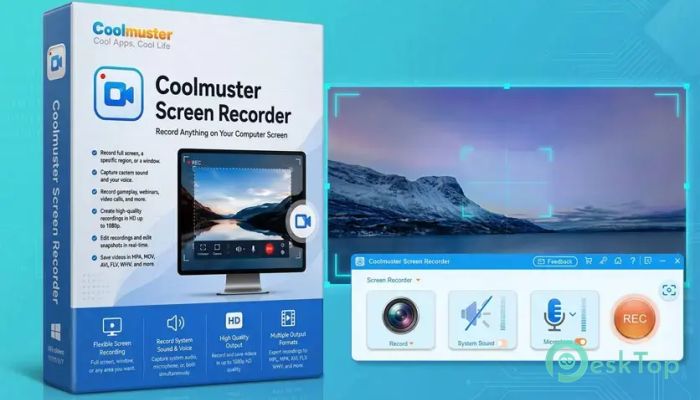
The software is made for users who need a simple way to record their computer screen without dealing with heavy tools or confusing settings. It works as a 2-in-1 solution, allowing you to capture videos and take screenshots from the same clean interface. You can record the full screen, a selected window, or a custom area depending on your task. It saves screen recordings in HD MP4 format, making the output easy to play, share, and store. Since everything is processed locally on your computer, your files remain private. There are no uploads, no cloud processing, and no external servers involved.Features of Coolmuster Screen Recorder
Simple Screen Recording
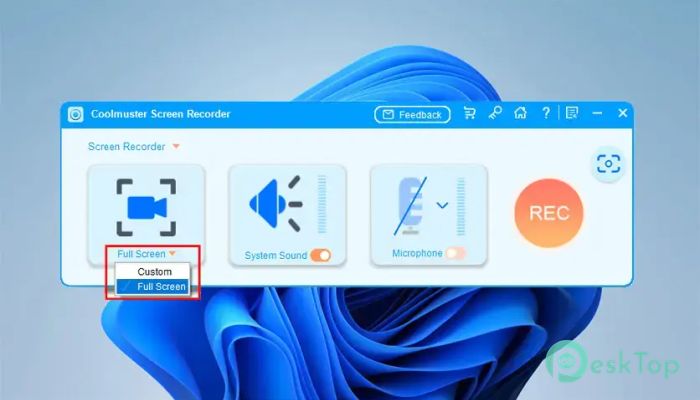
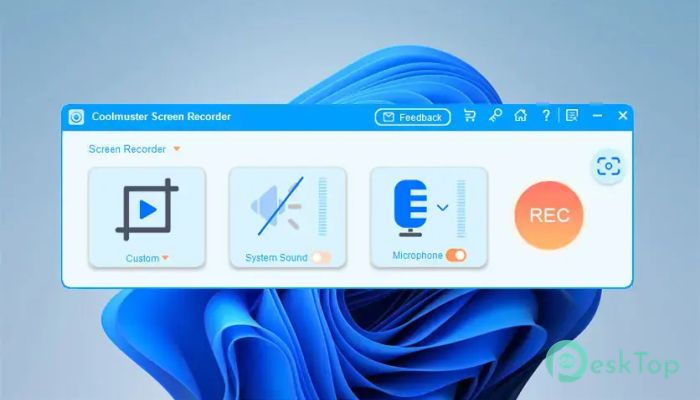
The tool lets you record your desktop with only a few clicks. You can capture the entire screen when making tutorials, record a selected app window for focused demonstrations, or choose a custom region when you only need a specific part of the display.
Its smart area selector shows real-time pixel dimensions while you drag the recording box. This helps you frame the exact area you want, like using a camera lens to focus only on the important scene.
HD Video Output
The software records videos in clear HD quality, so the final result looks sharp and professional. Whether you are recording lessons, software guides, gameplay clips, online meetings, or workflow demos, it keeps the output clean and easy to understand.
After registration, it removes common limits such as watermarks and recording time restrictions. This makes it useful for longer sessions where you need freedom and consistency.
Flexible Audio Options
The tool gives you control over audio recording. You can record system sound when capturing gameplay, videos, or app sounds. You can also record microphone audio when creating voiceover tutorials or training videos.
It also supports silent recording, which is helpful for private demos or visual guides. This simple choice keeps recordings clean and avoids unwanted background noise.
Screenshot Capture Features
The software is not limited to video recording. It also includes a screenshot tool for capturing full screens or selected regions. This is useful when you need quick images for guides, reports, support messages, or presentations.
You can save screenshots in PNG, JPEG, JPG, or BMP format. The image quality remains sharp, so your captured content looks clear even after saving.
Built-in Editing Tools
The screenshot editor helps you highlight important details before saving the image. You can add arrows, lines, boxes, circles, and text to make your point clearer.
This is especially useful for tutorials and instructions. Instead of explaining everything with long sentences, you can mark the exact area and guide the viewer visually.
Private Local Processing
One of its best advantages is privacy. All recordings, screenshots, and edits are handled directly on your Windows PC. Your files do not leave your device, which gives you full control over your work.
This local-only approach is helpful for users who record private meetings, business screens, personal notes, or sensitive software activity. You keep ownership of every file from start to finish.
Lightweight Performance
The tool is designed to run smoothly without putting heavy pressure on your system. It is lightweight, responsive, and suitable even for modest hardware.
While some screen recorders feel bulky, this one works more like a small helper in the background. It stays ready when needed and does not interrupt your workflow.
Easy Controls
The software keeps recording controls simple and accessible. You can start, pause, or stop recording without digging through complex menus. A handy toolbar keeps the main actions close while you work.
This makes it friendly for beginners and fast enough for regular users. You do not need advanced editing or recording knowledge to get a clean result.
Useful for Many Tasks
The tool can be used for online lessons, software tutorials, gameplay recording, training videos, bug reports, product demos, and quick visual notes. It fits both personal and professional needs.
For example, a teacher can record lessons, a support agent can capture an issue, and a content creator can prepare simple video guides. It works like a digital notebook for your screen.
System Requirements and Technical Details
Operating System: Windows 11 / 10 / 8 / 7
Processor: Minimum 1 GHz Processor (2.4 GHz recommended)
RAM: 2GB (4GB or more recommended)
Free Hard Disk Space: 200MB or more is recommended

-
Program size44.10 MB
-
Version1.1.68
-
Program languagemultilanguage
-
Last updatedBefore 3 Month
-
Downloads20Ralated programs
![ChrisPC VideoTube Downloader Pro]() ChrisPC VideoTube Downloader Pro
ChrisPC VideoTube Downloader Pro![TranscribeKit]() TranscribeKit
TranscribeKit![Vision Search]() Vision Search
Vision Search![DVDFab]() DVDFab
DVDFab![Crynet Showcase]() Crynet Showcase
Crynet Showcase![OVRLEY]() OVRLEY
OVRLEY
 ChrisPC VideoTube Downloader Pro
 TranscribeKit
 Vision Search
 DVDFab
 Crynet Showcase
 OVRLEY